0%

Fullstack Vue 實作範例 (1)

活在使用 Oracle APEX 開發環境實在幸福,只要會 SQL 與 PL/SQL 就可以搞定一個 Web Application。我們可以不用了解開發一個 Web Application 的架構與技術,也不用管認證,如果可以,我寧願留在 APEX 中,不用管資料的一致性、資料的交易、伺服器端的管理、Message Broker 等等。

但環境的變化,往往逼迫我們要去適應一些新的應用,走出 APEX,要了解與學習就非常非常的多了。首先,要決定使用何種語言就是一種挑戰。 選擇了語言,要使用何種開發架構,又是一番的掙扎。如今 SPA 架構是主流,也是走向 PWA 的必要過程。SPA 目前有 3 大主流架構,React、Angular 與 Vue,雖然 Angular 是我的最愛,因為它使用 TypeScript 可以彌補 JavaScript 弱型態的缺點,但門檻比較高,所以我們就從 Vue.js 開始。

在這個範例中我們會從 Server 端開始,然後使用 Vue.js 開發前端。這個範例沒有使用 Vue.js 的開發工具 Vue Cli,也沒有使用 Webpack 打包工具及 Webpack Dev Server,主要的目的是讓大家了解整個 Web Application 所需要的架構及運作方式。真正的開發還是要使用 Vue CLI 會方便一些。

原始碼

這個範例可以當成 Web Application 的起始架構,程式碼可以使用 git 或複製壓縮檔取得:

  • 如果你有安裝 git,可以用 git clone 取得程式碼,我的 Z: 虛擬硬碟是指向 XXX111。
1
2
3
4
5
6
7
git clone Z:\DBA\Git\Depot\vue-demo-sample.git

cd vue-demo-sample

npm install

npm start
  • 如果沒有安裝 git,可從 XXX111:\DBA\Oracle Training\Xyang\Source\vue-demo-sample.zip 取得壓縮檔,解壓縮後:
1
2
3
npm install

npm start

如果要用在正試環境時,記得將 package.json 的屬性 start 改為用 Node.js 啟動:

package.json
1
2
3
"scripts": {
"start": "node ./bin/www"
},

實作細節

以下則是詳細的過程及說明。

當使用者透過流覽器上的 URL 開啟 Web Application,總是要有一個伺服器讓它可以連結,我們就從建立一個 Web Server 開始,雖然公司決定使用 .NET 架構,但這理我還是使用 Node.js Express,這可以讓我們前、後端都使用 JavaScript,可以不用在語言中切換。使用 .NET 架構將不會影響前端的 Vue.js 程式碼。

伺服器端 Node.js Express

如果已經上過 Node.js 課程,應該已經有裝好 Express,首先切換到你要建立專案的目錄,我們需要建立一個 Express 專案,這裡的專案名稱是 vue-demo-sample。

1
2
3
express vue-demo-sample --view ejs --git
cd vue-demo-sample
npm install

這樣我們的 Web Server 就可以啟動了,使用 VSCode 直接開啟 vue-demo-sample 目錄,然後開啟一個終端視窗,啟動 Web Server。

1
npm start

從流覽器開啟 http://localhost:3000/ 你就可以看到 Express Server 的起始畫面,這個 Web Server 就將是我們 Web Application 的伺服器,我們可以開始使用 Vue.js 開發前端程式了。

開始 Vue.js 之前我們先來了解一下伺服器端的架構與運作方式。
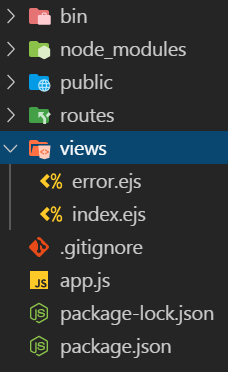
public 目錄是 Express 靜態檔案服務的根目錄,所有需要下載到流覽器前端的程式碼,都會放在這個目錄下,當你從流覽器開啟 http://localhost:3000/ 時,它會對應到 Express Server 端的這個 public 目錄,然後尋找 index.html 並下載到流覽器渲染成我們所看到的畫面。在 SPA 架構中,這幾乎是我們會從伺服器下載的唯一一個 HTML 檔案,我們也將從這裡開始 Vue.js 的旅程。

但在 Express 的 public 目錄中並沒有發現 index.html,這是因為 Express 使用伺服器端的模版(這理使用 EJS,EJS 是一種簡單的模板語言,可讓您使用純 JavaScript 生成 HTML 標記)動態產生一個 index.html,你可以在 views 目錄中發現這個模版 index.ejs

views/index.ejs
1
2
3
4
5
6
7
8
9
10
11
<!DOCTYPE html>
<html>
<head>
<title><%= title %></title>
<link rel='stylesheet' href='/stylesheets/style.css' />
</head>
<body>
<h1><%= title %></h1>
<p>Welcome to <%= title %></p>
</body>
</html>

這是傳統 Web Application 使用的方式,我們稱為伺服器端渲染,動態的在伺服器端使用模版將資料與畫面綁成一個 HTML 檔案然後下載到流覽器,PHP、JSP、ASP 等等都是使用這種架構,缺點很明顯,當前端瀏覽器畫面有任何的異動都必須經過伺服器端從新渲染,然後下載。

AJAX 的出現,改變了此種生態,它可以動態的在前端只更動畫面的某區塊,而不用重新渲染整個頁面,這就是 SPA 架構的基礎。所以如果使用 SPA 架構,我們只需要從伺服器端下載一個起始的 HTML 檔案。所以我們可以從 index.ejs 開始,但我通常不會去動此檔案。所以就在 public 目錄下建立一個 index.html 檔案,將 index.ejs 內容複製到 index.html 中,並將動態渲染的部分改成靜態內容。

public/index.html
1
2
3
4
5
6
7
8
9
10
11
<!DOCTYPE html>
<html>
<head>
<title>Demo Sample</title>
<link rel='stylesheet' href='/stylesheets/style.css' />
</head>
<body>
<h1>Demo Sample</h1>
<p>Welcome to Tainan! 就從這裡開始!</p>
</body>
</html>

修改了 index.html 後需要從新啟動 Express Server,從流覽器中我們就可以看到結果了,這是因為 Express 在 public 目錄下發現有 index.html 靜態檔案,就直接下載執行,並停止原先往下執行 index.ejs 的動態渲染,現在可以從 index.html 開始 Vue.js 的開發了。

開始之前我們要修改一下,此專案目錄下的啟動設定,我們用 nodemon 幫我們監控,當我們有更動檔案時幫我們從新啟動 Express,免得每次都要手動,但記得上線時將此設定回覆。

開啟 package.json 將 node 改為 nodemon。

package.json
1
2
3
4
5
...
"scripts": {
"start": "nodemon ./bin/www"
},
...

從新啟動後,你將會看到 nodemon 會開始監看你的專案目錄,當有任何異動就會重新啟動 Express Server。 但是 nodemon 沒有辦法幫你前端的瀏覽器重新刷新,這還是得手動重新刷新流覽器。Vue CLI 則可以幫你自動刷新流覽器,可讓我們有比較好的開發體驗。

前端開發

Vue.js 與 Vuetify.js

我們要從 public/index.html 檔案開始,先讓我們快速看到一些樣子,既然要使用 Vuetify.js,就讓它有 Vuetify.js 的樣子。前往 Vuetify 網站,它有個 index.html 的範例,將它複製到我們的 index.html。

public/index.html
1
2
3
4
5
6
7
8
9
10
11
12
13
14
15
16
17
18
19
20
21
22
23
24
25
26
27
<!DOCTYPE html>
<html>
<head>
<link href="https://fonts.googleapis.com/css?family=Roboto:100,300,400,500,700,900" rel="stylesheet">
<link href="https://cdn.jsdelivr.net/npm/@mdi/font@3.x/css/materialdesignicons.min.css" rel="stylesheet">
<link href="https://cdn.jsdelivr.net/npm/vuetify@2.x/dist/vuetify.min.css" rel="stylesheet">
<meta name="viewport" content="width=device-width, initial-scale=1, maximum-scale=1, user-scalable=no, minimal-ui">
</head>
<body>
<div id="app">
<v-app>
<v-content>
<v-container>Hello world</v-container>
</v-content>
</v-app>
</div>

<script src="https://cdn.jsdelivr.net/npm/vue@2.x/dist/vue.js"></script>
<script src="https://cdn.jsdelivr.net/npm/vuetify@2.x/dist/vuetify.js"></script>
<script>
new Vue({
el: '#app',
vuetify: new Vuetify(),
})
</script>
</body>
</html>

重新刷新你的瀏覽器網頁,你將會看到結果。

我們來更改一些程式碼,看看是不是有正常運作。加入 Vue 實例屬性 data:

public/index.html
1
2
3
4
5
6
7
8
9
<script>
new Vue({
el: '#app',
vuetify: new Vuetify(),
data: {
message: "Hello Tainan! 就從這裡開始!"
}
})
</script>

然後修改 html 標籤 <v-container> 讓它作單向資料綁定,同時加入一個 Vuetify 的 class “display-1”。

public/index.html
1
<v-container class="display-1">{{ message }}</v-container>

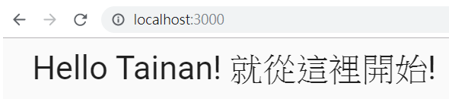
刷新網頁,將會看到如下畫面,表示 Vue.js 與 Vuetify.js 都正常運作了。
Vue-router

一般傳統的 Web App 如果要改變頁面顯示的內容,都是透過更改流覽器的 URL 來達成。改變流覽器的 URL,流覽器會送出一個 Request 到伺服器端要求重新送回一個樣板動態渲染的 HTML 內容,這就是 Server-side Routing。在 SPA 改變頁面顯示內容,也都是透過更改 URL 來達成,但必須防止流覽器將此 Request 送到伺服器端,替代的執行我們所要求的行為,這就有賴 Vue Router 程式庫來幫我們達成,這就是所謂的前端路由 Client-side Routing。

前網 Vue Router 網站看看如何開始。

public/index.html
1
<script src="https://unpkg.com/vue-router/dist/vue-router.js"></script>

從 CDN 將 vue-router.js 下載,並將以下的 HTML 加到 index.html 原先的 message 下面:

public/index.html
1
2
3
4
5
<p>
<router-link to="/">Go to Home</router-link>
<router-link to="/about">Go to About</router-link>
</p>
<router-view></router-view>

再來須要更改 javascript,將 router 加入運作。

public/index.html
1
2
3
4
5
6
7
8
9
10
11
12
13
14
15
16
17
18
19
20
21
22
<script>
const HomePage = { template: '<div>This is Home Page</div>' };
const AboutPage = { template: '<div>This is About Page</div>' };

const routes = [
{ path: '/', component: HomePage },
{ path: '/about', component: AboutPage }
];

const router = new VueRouter({
routes
});

new Vue({
el: "#app",
vuetify: new Vuetify(),
router,
data: {
message: "Hello Tainan! 就從這裡開始!"
}
});
</script>

HomePage 與 AboutPage 是兩個簡單的 Vue.js 組件,這裡也將 router 加入 Vue 實例中。刷新流覽器頁面,你將可以看到兩個連結,點擊這些連結,看看頁面的內容會不會跟著變動,也順便觀察一下流覽器 URL 的變動。

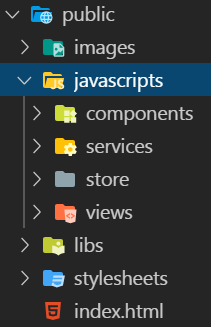
到這裡你會發覺,隨著系統的功能增加, index.html 會越來越複雜,總不能把所有程式碼都放在一個檔案裡吧,我們需要把它拆開,就是所謂的模組化。模組化首先想到得就是怎麼按種類區分到不同的目錄下,所以就從 Express Server 的 public 目錄開始規劃,以下會是我的目錄結構。
現在就要來開始拆解 index.html,首先要將 index.html 中的 script 獨立出來,依功能分類放在不同的目錄與檔案中。

首先是 Vue.js 的組件,通常會把組件再依其功能分為顯示頁面的組件及功能性的組件,顯示頁面組件會放在 public/javascripts/views 目錄中; 功能性組件則會放在 public/javascripts/components 目錄:

public/javascripts/views/HomePage.vue.js
1
2
3
4
5
6
7
const HomePage = {
name: "HomePage",
template: `
<div>
<h1 class="display-1">This is Home Page</h1>
</div>`
};
public/javascripts/views/AboutPage.vue.js
1
2
3
4
5
6
7
const AboutPage = {
name: "AboutPage",
template: `
<div>
<h1 class="display-1">This is About Page</h1>
</div>`
};

新增一個 PageNotFound 組件:

public/javascripts/views/PageNotFound.vue.js
1
2
3
4
5
6
7
const PageNotFound = {
name: "PageNotFound",
template: `
<div>
<h1>404 Page Not Found</h1>
</div>`
};

最好也將 Vue Router 獨立在一個 JavaScript 檔案中,直接放在 public 目錄下,將 router mode 改為使用 HTML5 history API :

public/router.js
1
2
3
4
5
6
7
8
9
10
11
12
13
14
15
16
17
18
19
const router = new VueRouter({
mode: "history",
routes: [
{
path: "/",
name: "home",
component: HomePage
},
{
path: "/about",
name: "about",
component: AboutPage
},
{
path: "*",
component: PageNotFound
}
]
});

將 Vue.js Application 的入口點獨立放在 public/main.js,這裡的 data 屬性將來也不再需要。

public/main.js
1
2
3
4
5
6
7
8
new Vue({
el: "#app",
vuetify: new Vuetify(),
router,
data: {
message: "Hello Tainan! 就從這裡開始!"
}
});

更改 index.html 的 <script> 部分,記得去除原來寫在這裡的程式碼,現在都已拆散在各獨立的程式檔中。你應該也能想像的到,如果不用 Vue Cli 開發工具來幫我們打包這些程式碼,index.html 將需要 import 多少獨立的 JavaScript 檔,而且必須注意它 import 的順序。

index.html
1
2
3
4
5
6
7
8
<script src="https://cdn.jsdelivr.net/npm/vue@2.x/dist/vue.js"></script>
<script src="https://cdn.jsdelivr.net/npm/vuetify@2.x/dist/vuetify.js"></script>
<script src="https://unpkg.com/vue-router/dist/vue-router.js"></script>
<script src="javascripts/views/HomePage.vue.js"></script>
<script src="javascripts/views/AboutPage.vue.js"></script>
<script src="javascripts/views/PageNotFound.vue.js"></script>
<script src="router.js"></script>
<script src="main.js"></script>

這裡的順序很重要,通常 main.js 會擺在最後面,子組件要擺在父組件之前。

同時修改一下 CSS,防止在渲染畫面時顯示未渲染前的畫面,例如, { { message } }。將此 CSS 放在 HTML head 的最後面。

public/index.html
1
2
3
4
5
<style>
[v-cloak] {
display: none;
}
</style>
public/index.html
1
<div id="app" v-cloak>

在此行加上 v-cloak。 刷新流覽器頁面看看是否正常。並觀察一下流覽器上 URL 的變化與之前有甚麼不同。現在使用的是 HTML5 history API,先前則是使用 hash mode。

再下來要修改從 CDN 下載檔案的方式,改為從自己的 Express Server 下載。首先當然得先下載這些檔案到我們的 Express Server,將它存在本地端上,我們可用 npm 下載。npm 除了用在管理 Node.js 端的組件外,現在也有很多的前端組件也可以用 npm 來下載安裝,我們就使用 npm install。

1
2
3
4
npm install vue --save-dev
npm install vuetify --save-dev
npm install @mdi/font --save-dev
npm install vue-router --save-dev

其中 @mdi/font 是 Meterial Design Icons,我們也會用到。

順便我們也將 Vuex 也先安裝起來。

1
npm install vuex --save-dev

Vuex 是 Vue.js 應用程序的狀態管理模式庫。它可集中存儲應用程序中所有組件的共享資源,並確保狀態只能以可預測的方式進行變更。這我們目前尚未用到。

npm 會將這些模組安裝在 node_modules 目錄下,這是伺服器端的目錄架構,我們不希望將此目錄暴露在網路下,所以我們只要將幾個需要的檔案複製到 public 目錄下。從 CSS 開始

  • 複製 node_modules/@mdi 整個目錄到 public/stylesheets 目錄下。
  • 複製 node_modules/vuetify/dist/vuetify.min.css 檔案到 public/stylesheets 目錄下。

接下來是 JavaScript

  • 複製 node_modules/vue/dist/vue.js 到 public/libs 目錄下。
  • 複製 node_modules/vuetify/dist/vuetify.js 到 public/libs 目錄下。
  • 複製 node_modules/vue-router/dist/vue-router.js 到 public/libs 目錄下。

接下來修改 index.html

public/index.html
1
2
<link href="stylesheets/@mdi/font/css/materialdesignicons.min.css" rel="stylesheet" />
<link href="stylesheets/vuetify.min.css" rel="stylesheet" />
public/index.html
1
2
3
<script src="libs/vue.js"></script>
<script src="libs/vuetify.js"></script>
<script src="libs/vue-router.js"></script>

測試一下看看是否正常,隨便找一個組件加入 icon 看看是否也正常運作

public/javascripts/views/HomePage.vue.js
1
2
3
4
5
6
7
8
const HomePage = {
name: "HomePage",
template: `
<div>
<h1 class="display-1">This is Home Page</h1>
<v-icon large color="red">mdi-home</v-icon>
</div>`
};

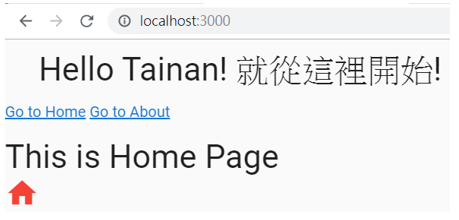
現在看起來就像

看起來很醜,但基本架構都已成型,就來裝扮一下 Application 的外表,我們可以到 Vuetify 中找一個預製的佈局,我使用的是 Google Contacts,將整個內容複製到一個新的檔案 public/App.vue.js,然後修剪一下內容。這將會是我們 Application 的外殼,不管網頁如何變化,這個外殼都會存在畫面上,例如網頁的導覽。這個 App.vue.js 就直接放在 public 目錄下。

public/App.vue.js
1
2
3
4
5
6
7
8
9
10
11
12
13
14
15
16
17
18
19
20
21
22
23
24
25
26
27
28
29
30
31
32
33
34
35
36
37
38
39
40
41
42
43
44
45
46
47
48
49
50
51
52
53
54
55
56
57
58
59
60
61
62
63
64
65
66
67
68
69
70
71
72
73
74
75
76
77
78
79
80
81
const App = {
name: "App",
components: {},
template: `
<v-app>
<v-app-bar :clipped-left="$vuetify.breakpoint.lgAndUp" app >
<v-toolbar-title class="headline ml-0 pl-4" >
<v-app-bar-nav-icon @click.stop="drawer = !drawer"></v-app-bar-nav-icon>
<span class="hidden-sm-and-down">Uni-President</span>
</v-toolbar-title>
<div class="flex-grow-1"></div>
<v-toolbar-items>
<v-btn color="indigo" tile text to="/">
<v-icon>mdi-home</v-icon>
<span class="mr-2 green--text text--accent-4 hidden-sm-and-down">Home</span>
</v-btn>
<v-btn color="amber" tile text to="/about">
<v-icon>mdi-information</v-icon>
<span class="mr-2 hidden-sm-and-down">About</span>
</v-btn>
<v-menu bottom left>
<template v-slot:activator="{ on }">
<v-btn icon color="teal" v-on="on">
<v-icon>mdi-dots-vertical</v-icon>
</v-btn>
</template>
<v-list dense>
<v-list-item v-for="item in items" :key="item.title" link :to="item.to">
<v-list-item-icon>
<v-icon>{{ item.icon }}</v-icon>
</v-list-item-icon>
<v-list-item-content>
<v-list-item-title>{{ item.title }}</v-list-item-title>
</v-list-item-content>
</v-list-item>
</v-list>
</v-menu>
</v-toolbar-items>
</v-app-bar>
<v-content>
<v-container>
<router-view />
</v-container>
</v-content>
<v-footer app>
<small class="grey--text">&copy; 2019</small>
</v-footer>
<v-navigation-drawer v-model="drawer" :clipped="$vuetify.breakpoint.lgAndUp" app>
<v-list-item>
<v-list-item-avatar>
<v-img src="images/pec_logo.png"></v-img>
</v-list-item-avatar>
<v-list-item-content>
<v-list-item-title class="red--text text--darken-2">
Uni-President
</v-list-item-title>
</v-list-item-content>
</v-list-item>
<v-divider></v-divider>
<v-list dense>
<v-list-item v-for="item in items" :key="item.title" link :to="item.to">
<v-list-item-icon>
<v-icon>{{ item.icon }}</v-icon>
</v-list-item-icon>
<v-list-item-content>
<v-list-item-title>{{ item.title }}</v-list-item-title>
</v-list-item-content>
</v-list-item>
</v-list>
</v-navigation-drawer>
</v-app>`,

data: () => ({
drawer: null,
items: [
{ title: "Home", icon: "mdi-view-dashboard", to: "/" },
{ title: "About", icon: "mdi-forum", to: "/about" },
{ title: "Not Exists", icon: "mdi-forum", to: "/not-exists" }
]
})
};

將 App.vue.js 加入 index.html,這得放在 main.js 之前。我也擺了一個 pec_logo.png 在 public/images 中。

同時需要修改一下 main.js,讓 Vue 創建實例時,就直接渲染 App 組件。

public/main.js
1
2
3
4
5
new Vue({
vuetify: new Vuetify(),
router,
render: h => h(App)
}).$mount("#app");

現在看起來漂亮多了

這可以當作基本的 Web Application 架構,複製整個專案,就可以開始加入你的 Application 組件了。