Offline first 是一種軟件開發方法,開發人員可以構建應用程序的核心功能,以在有或沒有 Internet 連接的情況下正常運行。借助 Offline first 方法,數據可以在本地端寫入終端用戶的設備上,並定期上傳和復製到雲中。
Offline first 策略的一個重要目標是在互聯網連接速度慢或不存在時為終端用戶提供一致的用戶體驗(UX)。該體系結構將數據和應用程序邏輯推送到網絡邊緣(network edge),並且大多數處理都在終端用戶的設備上進行。
將所有裝置產生的資料傳送至集中式資料中心,或傳送至雲端,會造成頻寬及延遲問題。邊緣運算(Edge computing)提供更有效率的替代方案:在更接近資料建立的位置處理及分析資料。因為不需將資料傳送到雲端或資料中心進行處理,因此大幅減少延遲現象。邊緣運算 - 以及 5G 網路上的行動式邊緣運算 - 能提供更快更全面的資料分析、產生更深入的洞察、具有更快的回應時間,以及改善客戶體驗。而終端用戶端的計算機也可視為網絡邊緣(network edge)。
這種方法不僅確保了應用程序的核心功能在沒有可靠的網絡連接的情況下仍能正常工作,而且還為移動用戶提供了電池資源和頻寬的更有效利用。對於旅行和體驗互聯網覆蓋盲區的終端用戶而言,這一點尤其重要。
AWS Offline Apps
到目前為止,我們已經使用了 REST API 和 GraphQL API。 在使用 GraphQL API 時,我們在本地端使用 API class 直接調用 GraphQL API 的 mutations 和 queries。
Amplify 還支援另一種與 AppSync 互動的 API:Amplify DataStore。 與一般的 GraphQL API 比較,DataStore 具有一些不同的方法。
DataStore 引入了客戶端 SDK(client-side SDK),它允許你使用本地端存儲引擎(local storage engine)進行讀寫操作,並保留這些數據。(例如使用,Web 的 IndexDB 和用於 iOS 和 Android 的 SQLite)。然後,DataStore 會自動將本地端數據透過 GraphQL API 同步到遠端存儲。記得我們也曾經使用 PouchDB 與 CouchDB 做過本地端與遠端數據的同步。這裡則是 DataStore 本地端自動透過 GraphQL API 同步到雲端的存儲。
使用 DataStore SDK,你只需直接執行 save、update 和 delete 之類的操作,即可直接寫入 DataStore 本身。 DataStore 可以為你處理其他所有事情:當你有 Internet 網路連接時,它會將數據同步到雲中;如果你離線時,則將會保留在 queue 中,在下次連線時將其同步到雲中。
DataStore 有三種內置的衝突解決策略來為您處理衝突檢測和解決方式:
- AutoMerge
在運行時檢查 GraphQL 類型的物件信息,以執行合併操作 (建議的選項)。 - Optimistic concurrency
傳入的記錄將與資料庫中最後寫入的項目進行版本檢查。 - Custom
使用 Lambda 函式將所需的自定義合併或拒絕更新業務邏輯寫入流程。
Amplify DataStore
Amplify DataStore 是以下各項的組合:
- AppSync GraphQL API
- 本地端存儲庫和同步引擎,也可以離線保存數據
- 用於與本地端存儲庫互動的客戶端 SDK。
- 啟用特殊的同步 GraphQL 解析器(由 Amplify CLI 自動產生的),可在伺服器上實現複雜的衝突檢測和衝突解決。
Amplify DataStore 概觀
開始使用 DataStore 時,仍然可以像創建一般的 API 一樣。 主要區別是,在創建 API 時,在 Amplify CLI 的進階設置中啟用 conflict detection 衝突檢測。
創建 GraphQL API 後接著要在客戶端上啟用 DataStore,我們需要為 DataStore 創建資料模型以用於與存儲庫互動。這只需依據已經存在的 GraphQL schema 定義,並執行 amplify codegen models CLI 構建命令,即可輕鬆實現。
Amplify DataStore Operations
| Operation | Commands |
|---|---|
| Import the model and DataStore API |
import { DataStore } from ‘@aws-amplify/datastore’ import { Message } from ‘./models’ |
| Saving data | await DataStore.save( new Message({ title: ‘Hello Tainan’, sender: ‘Emily’ }) ) |
| Reading data | const messages = await DataStore.query(Message) |
| Deleting data | const message = await DataStore.query(Message, ‘123’) DataStore.delete(message) |
| Updating data | const message = await DataStore.query(Message, ‘123) await DataStore.save( Message.copyOf(message, updated => { updated.title = ‘My new title’ }) ) |
| Observing/subscribing to changes in data for real-time functionality |
const subscription = DataStore .observe(Message) .subscribe(msg => { console.log(msg.model, msg.opType, msg.element) }); |
DataStore Predicates
你可以使用 GraphQL 類型上定義的字段(field)以及 DynamoDB 支援的條件謂詞對數據存儲應用過濾器:
Strings: eq | ne | le | lt | ge | gt | contains | notContains | beginsWith | between

Numbers: eq | ne | le | lt | ge | gt | between

Lists: contains | notContains
例如,如果要獲取 title 包含 “Hello” 的所有訊息的列表:
1 | const messages = await DataStore |
也可以將多個條件謂詞鏈接到一個操作中:
1 | const message = await DataStore |
這些條件謂詞使你可以透過多種方式從本地數據中檢索不同的選擇集。以這種方式,你無需將整個資料經過網路下載到客戶端然後再檢索整個集合和過濾,直接可以快速的從本地存儲中精確查詢所需的數據。
Building an Offline and Real-Time App with Amplify DataStore
了解了基本的運作方式,我們要來實作一個應用程序。這個應用程序的用戶可以創建一條新消息,所有其他用戶將即時收到該消息。如果用戶離線,他們將能夠繼續創建消息,一旦他們重新連上線,這些消息將自動同步到雲端,並且也將會同步取得其他用戶在這段時間所創建的所有消息。而其他用戶也會即時收到你同步到雲端的新消息。
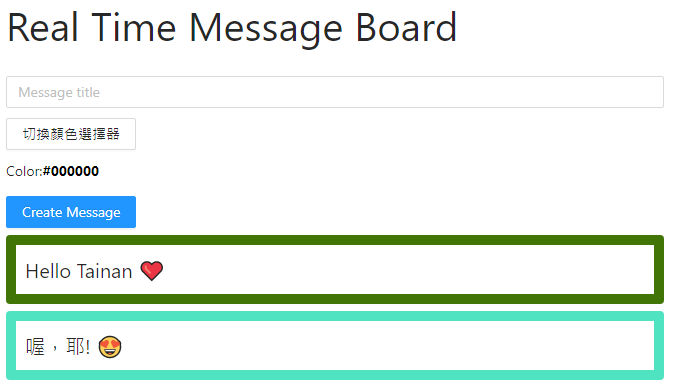
我們的應用將執行三種類型的 DataStore API 操作:
- save
使用 DataStore 創建一個新項目,將項目保存在本地端,並在背後執行 GraphQL mutation。 - query
從本地數據存儲中讀取,返回單個項目或列表 (陣列),並在背後執行 GraphQL query。 - observe
監聽本地數據存儲中的更改(創建,更新,刪除),並在背後執行 GraphQL subscription。
1. Creating the Base Project
我們要做的第一件事是創建 React 專案:
yarn create react-app rtmessageboard |
接下來,初始化一個新的 Amplify 專案:
amplify init |
請按照步驟為專案命名,環境名稱並設置預設的文本編輯器。 |
2. Creating the API
現在,我們將創建 AppSync GraphQL API:
amplify add api |
? Please select from one of the below mentioned services: GraphQL |
更改 GraphQL schema:
1 | type Message @model { |
現在,我們已經創建了 GraphQL API,並且已經有了一個 GraphQL schema,我們就可以用這個 GraphQL schema 創建本地 DataStore API 所需的資料模型(models)。
amplify codegen models |
這將在我們的專案中創建一個名為 models 的新文件夾。 使用此文件夾中的模型,我們可以開始與 DataStore API 進行互動。
部署 API:
amplify push --y |
3. 客戶端代碼
首先,打開 src/index.js 在最後一行 import 下面添加以下代碼來配置 Amplify 應用:
1 | import 'antd/dist/antd.css' |
接下來,打開 src/App.js 並使用以下代碼進行更新:
1 | import React, { useState, useEffect } from 'react' |
讓我們看一下這個組件中重要的部分:
- 我們從 Amplify 導入 DataStore API 以及導入 Message 資料模型
- 我們使用 useState 掛鉤創建三個組件狀態(Component state):
- formState
這個物件管理表單的狀態,包括將用於顯示消息的 title 與背景顏色的 color。 - messages
這將管理從 DataStore 提取的消息陣列。 - showPicker
這將管理一個 Boolean 值,該 Boolean 值將切換顯示或隱藏顏色選擇器,以填充消息的 color 值。
- formState
- 當組件加載時在 useEffect 掛鉤中我們調用 fetchMessages 函式獲取所有消息,並調用 DataStore.observe 創建一個訂閱以偵聽消息更新。當訂閱被觸發時,我們再次調用 fetchMessages 函式以獲取最新的數據來更新應用程序。
- fetchMessages 函式調用 DataStore.query,然後使用返回的消息陣列更新組件狀態。
- onChange 處理程序處理表單的輸入以及顏色選擇器的更新。
- 在 createMessage 中,我們首先檢查 title 以確保有值。 如果是,使用 DataStore.save 存儲消息,然後重置表單狀態。
- 在 deleteMessage 中先用 DataStore.query 取得要刪除的消息,然後使用 DataStore.delete 刪除它。
這裡使用 DataStore SDK,你只需直接執行 save、update 和 delete 之類的操作,直接寫入 DataStore 本身。 DataStore 可以為你處理其他所有事情:當你有 Internet 網路連接時,它會將數據同步到雲中;如果你離線時,則將會保留在 queue 中,在下次連線時將其同步到雲中。
啟動應用程序,讓我們測試看看:
yarn start |
4. 測試遠端同步與離線功能
首先在正常連線下創建新的消息,然後觀察本地端的存儲與雲端的存儲。
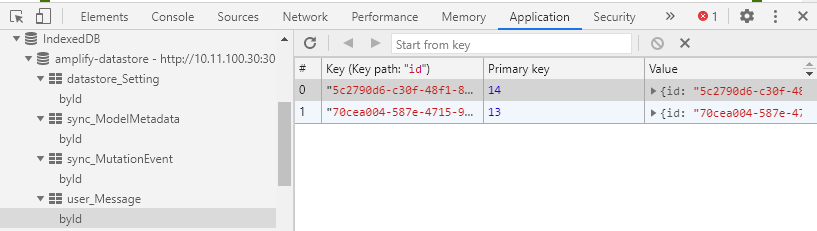
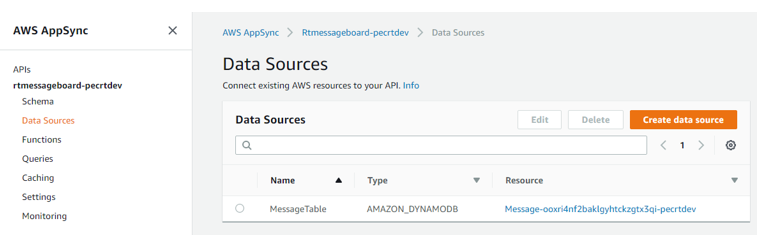
要觀察雲端的存儲,請在 AWS 控制台中打開 AppSync API,然後選擇 Data Sources -> MessageTable:
amplify console api |
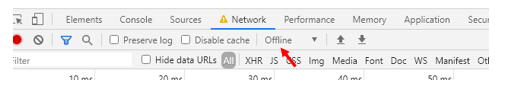
現在,嘗試離線,創建新的消息,觀察兩端的存儲,然後重新連線,再度觀察兩端的存儲。 您應該注意到,當重新連線時,該應用程序在離線時所創建的有消息都同步到雲端的資料庫中。
5. 測試 Real-Time 功能
要測試 Read-Time 即時功能,請打開另一個瀏覽器窗口,或另外找一台電腦開啟瀏覽器窗口。 然後在一個窗口中創建一個新項目,並在另一窗口中查看 UI 介面是否自動更新。也觀察一下離線和重新連線時,即時功能會如何運作。
在此示例中,請注意以下幾點:
- Amplify 支持兩種不同的 API 與 AppSync 進行互動:API class 以及 DataStore。
- 使用 DataStore 時,不再需要直接使用 HTTP API 發送請求。 相反的,直接寫入本地端存儲引擎,然後 DataStore 會負責與雲端之間的同步。
- 預設情況下,Amplify DataStore 使用離線(offline)工作。
- 這裡,你也學到了基本的 Offline first 與 Edge computing。